The current generation Toyota Urban Cruiser is bigger and better in so many aspects compared to its previous generation. My colleague Lawrence Minnie had the vehicle on test, and you can read his thoughts here.
Related: Toyota Urban Cruiser trimes head to head: Here's our winner
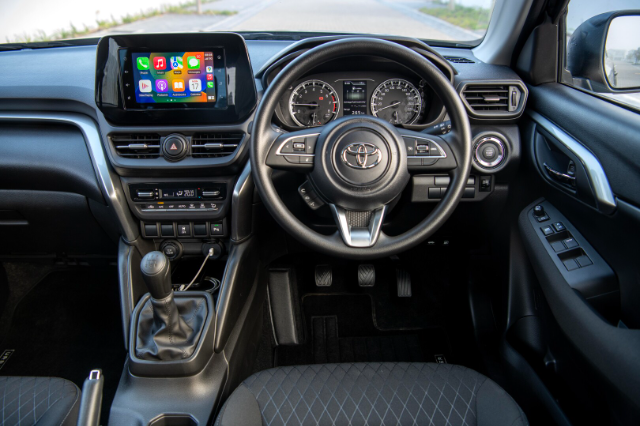
The latest Urban Cruiser improves on its styling, practicality, safety and, last but not least, its convenience features. The crown jewel on the dashboard centre stack is the 7-inch Toyota Display Audio infotainment system found on all Urban Cruiser variants, so no one is left out. In the XS trim, you get two speakers, whereas you get four speakers in the XR trim. Naturally, the infotainment system is Android Auto and Apply CarPlay enabled. How does one connect their Android phone to the infotainment system, though? If you have an iPhone, however, you can check our guide here.
Great! How do I connect my Android phone to my Urban Cruiser, though?
There are a few ways to connect your Android phone to your Urban Cruiser's infotainment system. Suppose you just want to use the primary music and call functionality. In that case, you can connect your Android via Bluetooth by pressing the phone button on the Toyota's touchscreen, followed by "Add Device" and following the on-screen prompts. You can use Android Auto wired or wirelessly if you wish to use it. To utilise the wired functionality, preferably use your phone's factory USB cable, and you can use the USB-A port at the bottom of the centre stack, then follow the on-screen prompts on both ends. If you want to utilise the wireless functionality, first establish the device handshake by connecting via a USB cable first (Using the steps above); then, you'll be able to use the wireless functionality. If you're sold on an Urban Cruiser after reading this, you can search AutoTrader for the latest offerings. While you're at it, if you want to help fund that new Urban Cruiser purchase by selling your current car quick and easy, why not try out our Instant Offer tool?