The third and current generation of the Ford Everest arrived locally in 2022, and subsequently, in 2023, Ford added a Wildtrak derivative to the model line-up. In addition to some stylistic changes in the cabin, Ford added various design and practical upgrades to the exterior of the Everest Wildtrak to set it apart from the rest of the range.
But you may own an Everest Wildtrak and are struggling to connect your Android phone to the infotainment system. Before you consider selling your car on AutoTrader here, here are some steps to follow to quickly and easily connect your Android phone to the SYNC 4A infotainment system. If you are still considering purchasing the model, remember you can search for new or used Ford Everest Wiltrak models on AutoTrader here.
Related: Ford Everest Wildtrak (2023) Review

Connect your Android phone to Ford Everest Wildtrak
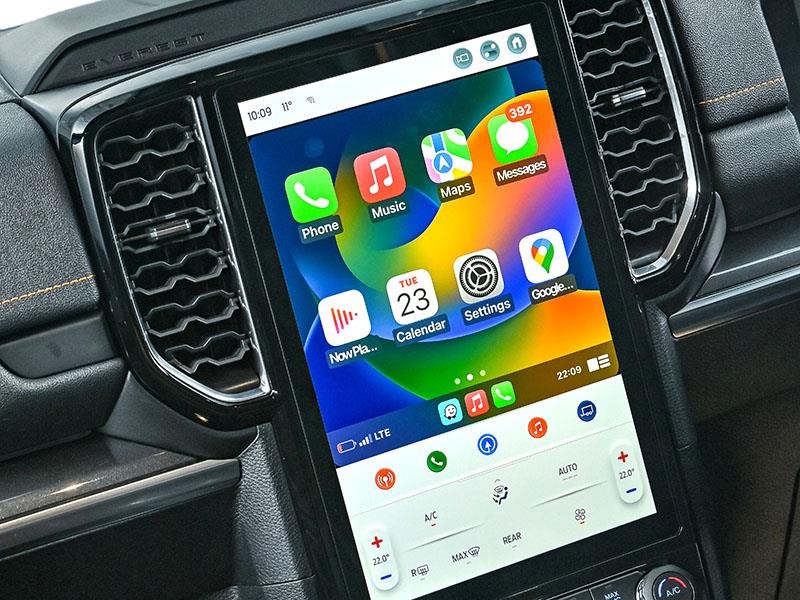
The new Ford Everest Wildtrak comes installed with the latest SYNC 4A infotainment system, which can be controlled from the large vertically oriented 12-inch touch display. Connecting your Android device to the system is quite intuitive; however, if you are struggling, here are a few easy steps to follow.
1. Unlock your Android phone and turn on Bluetooth.
2. Switch on the vehicle but remain stationary.
3. At the top of the infotainment screen, press the icon with the six dots to reveal a drop-down menu.
4. In the drop-down menu, select the Phone option feature.
5. In the Phone interface on the infotainment system, select "Add Device"
6. Look for your Android phone Bluetooth search results for Ford Everest and select it.
7. A pop-up will appear on both your phone and infotainment system with a unique code to confirm that you are connecting to the correct device. Press pair on your Android phone and press yes on the infotainment system.
8. A prompt on your phone will appear, notifying you that the infotainment system wants to sync contacts; press allow or agree.
9. Another prompt on your Android phone will appear, asking if you would like to launch and use Android Auto; select yes.
10. On the infotainment screen, read and select your preferences and press finish.
11. Another prompt will be displayed whereby Ford notifies you, the user, that your phone and the vehicle might record data such as the vehicle's location and speed. Select Enable Android Auto.

Your Android device is now paired with the Ford Everest's infotainment system and provided that the Bluetooth remains on, every time you enter and start the vehicle, your phone will automatically connect and open Android Auto. Android Auto allows you to access your favourite navigation apps, such as Waze, or music streaming services, such as YouTube Music or Spotify. The system will also allow you to make and receive phone calls while your hands remain on the steering wheel.