Grand Connection
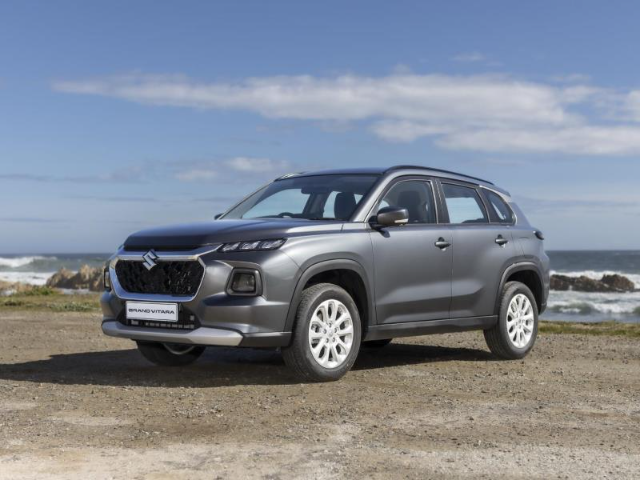
The new Suzuki Grand Vitara, which was released earlier this year, shares much of its construction with its Toyota cousin, the new Urban Cruiser. Both vehicles are now bigger and more well-equipped than the outgoing models, and this goes as far as the infotainment systems.
Related: Toyota Urban Cruiser (2023) First Drive Review
The infotainment on both is capped off with both Apple car Play and Android Auto, and below we describe just how easy it is to connect your smartphone to the Grand Vitara.
Setting up your connection
1. Before you can connect your Android device to the infotainment system of your Suzuki Grand Vitara, you will need to install the Android Auto application that can be found here. Once the application is installed on your smart device, proceed to open the application and follow the prompts.
2. Once the application is set up, switch on the vehicle and, while remaining stationary, connect your phone to the car via Bluetooth. Once connected, a request to access your contacts will come up on your phone, which you will need to agree with. Once the Bluetooth connection is set up, use a USB cable that is compatible with data transferring to connect your phone to the USB port of the vehicle.
3. With the Android Auto application opens on your smartphone, the vehicle's infotainment system will prompt you to ask if you would like to connect to Android Auto. Select yes and follow the prompts on the screen, which will require you to switch on the location services of the device as well as accept the system accessing your device's notifications, calendar and additional privileges.
Get an Instant Offer on your old car here

Jamming Out
Once you have provided Android Auto access to the information on the smartphone and agreed to the terms of use, the smart device will now be connected to the infotainment system and utilising the Android Auto application, which will provide the vehicle's occupants with direct access to applications such as Google Maps, Spotify and many more, through the infotainment display.
Note that, for safety reasons, this connection can only be made while the vehicle is not in operation and is in a stationary position. The setup shouldn't take more than five minutes, and once completed, both the smart device and the vehicle's onboard system will remember the connection and allow you to connect easily in the future.