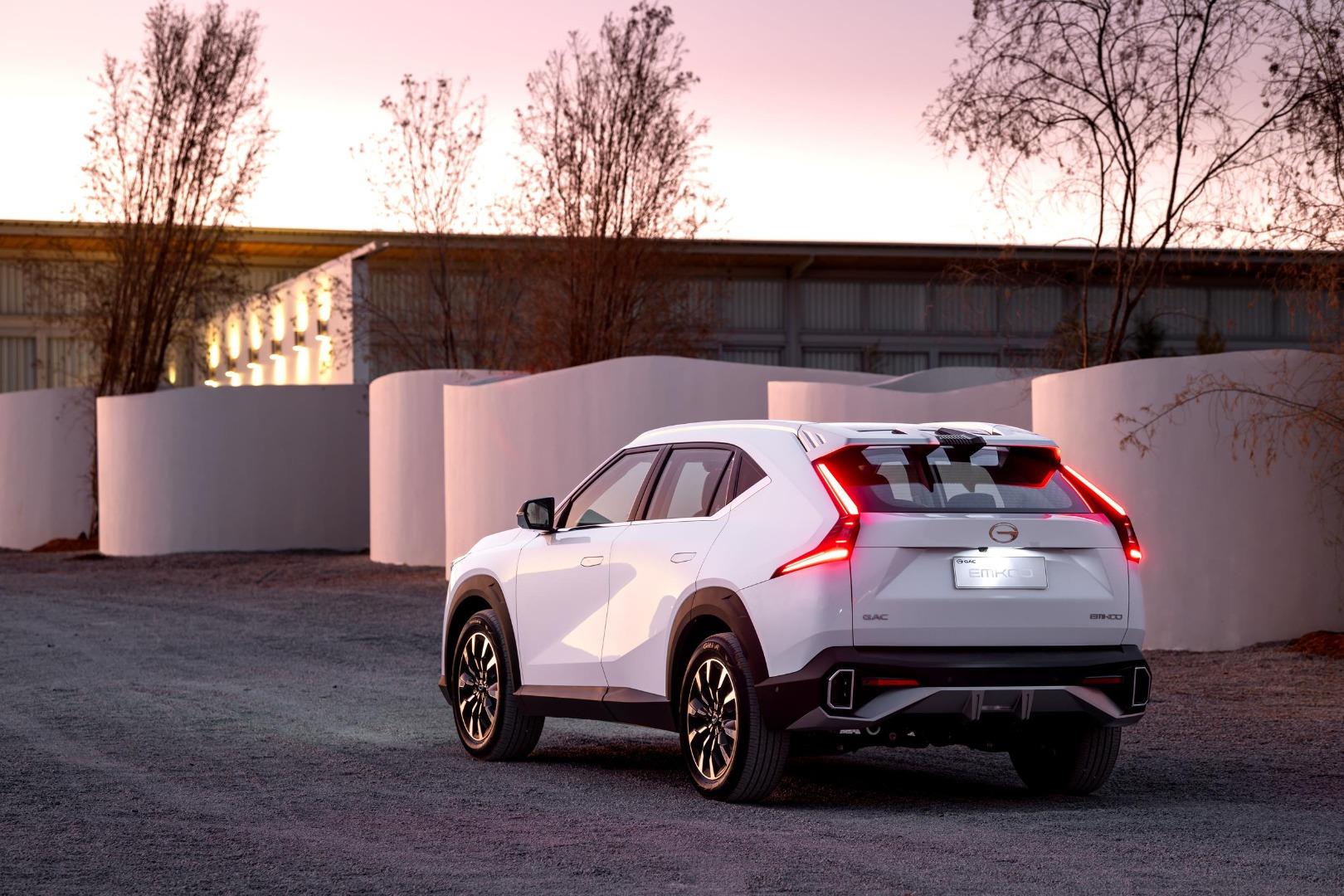

GAC Motor has come in strong with its maiden voyage products, namely the Emzoom and Emkoo. In this instance, we'll focus on the Emkoo, which blends tech and style in a crossover SUV package. We attended the launch of the Emkoo, which you can read about here.
Related: GAC Emkoo Pricing Revealed
The Emkoo makes a strong argument in the aesthetics department. The front end is the most striking in its segment. Inside, you'll find a premium interior with expert use of soft-touch material and synthetic leather. Regarding tech, you'll find a 10.1-inch touchscreen to handle your infotainment duties. Want to connect your Android phone, though? Here's a guide to do so:

How do I connect my Android phone to the GAC Emkoo?
For Android Auto to function in the Emkoo, you need to connect to the Bluetooth adapter included within the vehicle. The USB-powered adapter must be plugged into the USB-A port with a smartphone logo. If you don't use this adapter, Android Auto won't function. Android Auto is wireless in this vehicle.
- Before you start the car, ensure the Bluetooth adapter is plugged in. Then, start your Emkoo.
- The infotainment screen will boot up and proceed to the Bluetooth settings menu from the adapter.
- Follow the prompts on the screen and your device to connect to Bluetooth.
- Once connected, Android Auto will display on the infotainment screen.
- You can play media and handle phone calls hands-free
Be advised that if you disconnect the adapter while you drive and try to reconnect it, Android Auto will turn it off. You must turn off your Emkoo entirely and restart it to reconnect to Android Auto.
Alternatively, you can use Emkoo's native Bluetooth connectivity to play media and take phone calls, but you won't have Android Auto.
- While the car is on, press the home logo on the infotainment screen. To your right, you'll see the Bluetooth symbol to connect your device in the menu stack under the media section.
- Make sure your device is visible so it shows up on the Emkoo's search screen.
- Tap your device name on the screen and follow the prompts on your device and the infotainment.
If you're keen on a GAC Emkoo, you can search AutoTrader for the latest used and new offerings and sell your car.