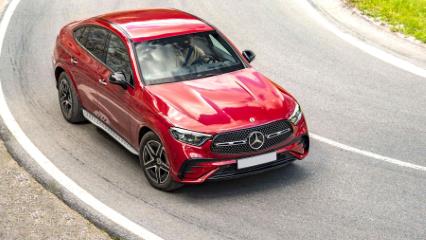
Avantgarde is one word that describes the Mercedes-Benz GLC Coupé along with descriptors like intelligence and driver experience. With the latest generation GLC Coupé, the recipe was refined further. My colleague Ané Albertse sampled the updated GLC Coupé at its launch and you can peruse her thoughts here.
Related: Top 3 things you need to know about the Mercedes-Benz GLC Coupé
One of the lovely new additions to the current generation GLC Coupé is the upgraded hardware and software of the MBUX infotainment system to offer a more user-friendly experience, and it's on the crisp central screen and instrument cluster. Paired with that is the Hey Mercedes voice assistant, which even has an audio Tourguide function that indicates points of interest along your route. Fancy a banger Burmester sound system? That's an optional and sweet extra. The updated MBUX infotainment system looks and sounds great; how do you connect your Android phone, though?
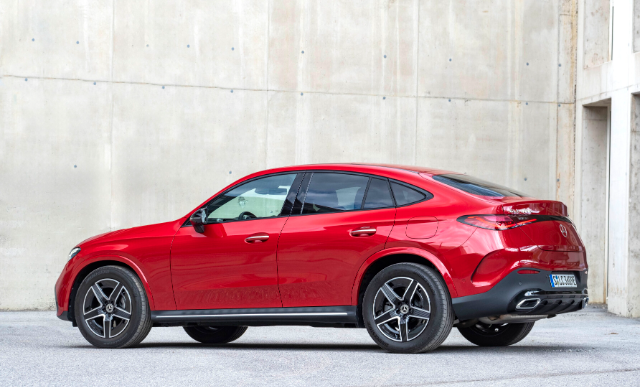
How to connect your Android phone to the GLC Coupé?
There are two ways to connect your Android phone to the GLC Coupé's MBUX infotainment system:
- Bluetooth. You can connect your Android phone wirelessly via Bluetooth. On the infotainment landing screen, You can either press the phone icon with the Bluetooth logo under the Telephone option or swipe right until you find the Smartphone integration option and press the phone icon with a Bluetooth logo, too. You'll then see the Connected Devices list and an option to connect a new device. Press that option. A page displaying the MBUX Bluetooth name will appear. On your Android phone, navigate to your Bluetooth settings, then search for the MBUX's Bluetooth name to connect. Follow the prompts on your phone and the infotainment screen, and you're golden. You can use Bluetooth for music and phonecalls.
- Android Auto. To initialise Android Auto, you'll need a USB-C cable to connect to one of the main USB-C ports in the centre stack. Once connected, MBUX will recognise your phone and start initialising Android Auto. You'll then be asked to unlock your phone, and you must follow the prompts on both your phone's screen and the infotainment. Once followed, Android Auto will be available for you to use wired and wirelessly.
Keen on a GLC Coupé? Search AutoTrader for one today and sell your car too!